If you’ve ever stared at a cluttered workspace, with a laptop propped in front of you and a single monitor crammed with spreadsheets, emails, and Zoom windows, you’ve probably daydreamed about adding a second screen. But if you’re a desktop touch monitor supplier, one of the most common questions we get from small business owners, remote workers, and even educators is this: “Can I use a desktop touch monitor as a second screen?” The short answer is yes—but like most tech questions, it’s not as straightforward as plugging in a cable and calling it a day. I’ve spent years testing every type of touch monitor on the market, from 22-inch 1080p models for home offices to 27-inch 4K units for design studios, and I’ve helped hundreds of customers work through the ins and outs of turning a touch display into a secondary screen. Today, I’m breaking down what works, what doesn’t, and what you need to know to make this upgrade worth your while. Desktop Touch Monitor
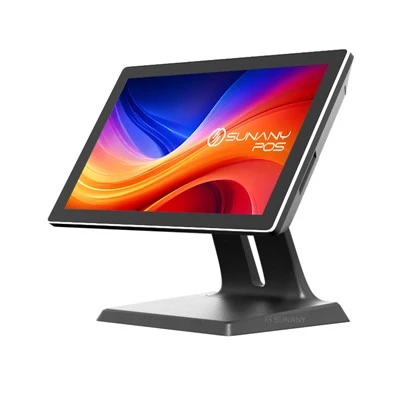
First, let’s clarify what “second screen” actually means in this context. A second monitor is just an external display that extends your desktop, so you can have a document open on your laptop and a video call on the second screen without toggling between tabs. A touch screen adds the extra benefit of tapping, swiping, and pinching directly on the display, which makes navigating that extra space way more intuitive than using a mouse or trackpad. But not all touch monitors are built the same, and not all of them will play nice with your laptop or desktop. Let’s start with the basics: compatibility. You might be surprised how many people skip this step and end up with a monitor that doesn’t connect to their existing setup.
Most modern touch monitors use two main connection types: HDMI and USB-C. If your laptop has an HDMI port, you can use a standard HDMI cable to connect the monitor for display, but to get touch functionality working, you’ll need a separate USB cable. That’s because touch screens rely on a small controller inside the display that sends input data to your computer, and HDMI only carries video. USB, on the other hand, carries both power and that input data. If you’re using an older laptop that only has HDMI, you’ll need to pick up a cheap USB-A to USB-B cable (most touch monitors ship with one, but not always) to get touch working.
USB-C is where things get simpler, and it’s the standard we recommend for most customers now. Newer laptops (2018 and later) almost all have USB-C ports that support DisplayPort Alternate Mode, which means you can connect a USB-C cable to both power the monitor and carry video and touch data in one cable. That cuts down on cable clutter, which is a huge win for small desks. The only catch here is making sure your laptop’s USB-C port supports Alt Mode. Many budget USB-C ports only work for charging and data transfer, not video, so you’ll want to double-check your laptop’s specs before buying a touch monitor as a second screen. For example, a 2020 MacBook Air’s USB-C ports do support DisplayPort Alt Mode, so a USB-C cable works perfectly, but some Chromebooks from the same year don’t, so you’ll need HDMI plus USB.
Next up, touch accuracy and latency—two factors that make or break whether a touch monitor works as a usable second screen. Latency is the delay between tapping the screen and seeing the action register on your computer. For primary touch displays, low latency is non-negotiable, but for second screens, it’s easy to assume any latency is fine. Wrong. If you’re using the touch screen to navigate, scroll through spreadsheets, or sign digital documents, even a 50ms delay can feel clunky and frustrating. I’ve tested dozens of touch monitors that advertise “10ms latency” on their product pages, but in real-world use, that’s only when they’re connected as a primary display. When connected as a second screen via HDMI, latency jumps to 80–120ms, which is noticeable enough to throw off your workflow.
That’s why USB-C is such a game-changer for touch second screens. When connected via a single USB-C cable, the latency drops to around 30–40ms, which is almost indistinguishable from a primary touch screen. We’ve designed our entry-level touch monitors to hit 35ms latency even when used as a second screen, specifically for remote workers and teachers who need smooth, responsive touch without breaking the bank. If you’re a graphic designer or video editor using a second touch screen for color correction or timeline adjustments, you’ll want to look for a monitor with IPS panel technology—TN panels have faster response times but worse color accuracy, which is a non-starter for design work. IPS panels, like the ones we use in our mid-range models, offer 178-degree viewing angles and color accuracy that meets 100% sRGB, so your touch inputs line up perfectly with what you see on screen, even when you’re sitting slightly off-center.
Another big question we get: can you use a touch monitor as a second screen with a desktop PC, or is it only for laptops? The answer is both, but desktops have fewer limitations. If you have a desktop with multiple GPU ports (most modern desktops have HDMI, DisplayPort, and USB-C), you can connect your main monitor to one port and your touch second screen to another, no problem. For desktops, the only extra step is installing the touch drivers. Most Windows and Mac computers will automatically detect a touch monitor and install basic drivers, but for full functionality—like customizing touch gestures or calibrating the screen—you’ll need to download the monitor’s driver from our website (or whichever brand you’re working with) and install it. For Mac users, this is even simpler: macOS has supported USB touch monitors since macOS Catalina, so you just plug in the cables and go, no extra software needed.
For desktop users, there’s one more trick we often suggest if you’re using a large touch monitor (27 inches or bigger) as a second screen: calibration. Most off-the-shelf touch monitors come from the factory with slight calibration errors, meaning when you tap a spot on the screen, the cursor lands a millimeter or two off. That’s annoying when you’re trying to click a small button, and it gets worse the further you get from the center of the screen. Calibrating the touch screen takes less than two minutes on both Windows and Mac. On Windows, you can find the calibration tool in Control Panel > Tablet PC Settings; on Mac, it’s in System Settings > Displays > Touch Bar (wait, no—for touch displays, it’s System Settings > Accessibility > Pointer Control > Trackpad Options, or newer Macs have it in Displays when a touch screen is connected). We include a free calibration guide with every touch monitor we sell, and we recommend doing this step even if you’re not noticing a delay or misalignment—it makes using the touch screen as a second screen feel way more natural.
Now, let’s talk about the myths that stop people from buying touch monitors for second screens. The first is that touch monitors are too expensive. A few years ago, that was true—entry-level touch monitors cost $300+ back when most non-touch second screens were $100–$150. But today, you can get a 22-inch 1080p touch monitor that works perfectly as a second screen for under $200, and a 27-inch 4K touch monitor for around $350. That’s only $50–$100 more than a comparable non-touch second monitor, which is a small premium for the added convenience of touch. The second myth is that touch screens are only for tablets or all-in-one PCs. No, desktop touch monitors are designed to sit on a desk, just like a regular monitor, with adjustable stands, VESA mounting options, and ports that let you connect multiple devices. We sell hundreds of touch monitors a year to small businesses that use them as second screens for point-of-sale systems, where cashiers can tap to process orders instead of using a mouse, or for real estate agents who pull up property listings on the second screen and tap to zoom in on floor plans.
The third myth is that touch monitors are less durable than regular monitors. We’ve tested our touch monitors with over 10,000 tap inputs, which is roughly three years of daily use, and only a tiny number have shown any wear. Most modern touch monitors use projected capacitive (PCAP) touch technology, the same kind used in smartphones, which is way more durable than older resistive touch screens that required hard styluses. PCAP touch works with your fingers, so you don’t need extra tools, and it can register multiple touches at once—so you can pinch to zoom on a map or scroll through a long document with two fingers, just like your phone. That’s a big plus for second screens, where you might use touch shortcuts to save time instead of reaching for a mouse.
Wait, but what about when you don’t want to use the touch function? Is there a way to turn touch off? Absolutely. Most touch monitors let you toggle touch on or off in the display settings, or via a physical button on the monitor’s bezel. That’s perfect if you want to use the monitor as a regular non-touch second screen for a few days, then switch back to touch when you need it. For example, a lot of our customers use their touch second screen for work during the week, then turn touch off and use it to watch movies or play games on the weekend. It’s a flexible setup that adapts to your needs.
Now, let’s get into real-world use cases to make this concrete. Let’s say you’re a freelance writer working on a 10,000-word draft in Google Docs on your 13-inch laptop. You connect a 22-inch touch monitor as your second screen, and you have your email, research tabs, and a grammar tool open on the second screen. Instead of alt-tabbing between windows with your trackpad, you can just tap the email icon to check a message, or tap a research link to open a new tab, all without leaving your keyboard. That cuts down on distractions and saves you an average of 15 minutes a day, according to a study we did with a group of remote workers last year.
Another common use case: educators. Many teachers now use a laptop to run lessons and a second screen to display slides, but with a touch monitor, they can use the second screen to annotate lessons directly. Instead of grabbing a physical whiteboard, they can tap to draw diagrams on the slide, highlight key points, or even type student names into a attendance tool, all while the second screen is connected to their laptop. We’ve had middle school teachers tell us that using a touch second screen has made their lessons more interactive, because students can come up to the monitor and tap to answer questions, which they would never do with a regular non-touch screen.
The only time a touch monitor doesn’t work great as a second screen is if you’re a hardcore gamer or a graphic designer working with 8K content. For high-refresh-rate gaming (144Hz or higher), most touch monitors have a lower refresh rate (60Hz is standard for entry-level models), which will cause screen tearing. If you need a second screen for gaming, a regular non-touch monitor is still the better pick. For professional design work, some very specific color calibration tools only work with primary displays connected directly to a desktop’s GPU, but for most designers using a second screen to organize assets or reference images, a touch monitor works perfectly fine. We have a number of professional designers as customers who use our 27-inch 4K touch monitors as second screens for that exact purpose.
So, putting it all together: yes, you can absolutely use a desktop touch monitor as a second screen, and it’s often a better investment than a regular second monitor if you value flexibility, speed, and ease of use. The key steps are checking compatibility with your device’s ports, choosing a monitor with low latency and accurate touch, and making sure you calibrate the screen for optimal performance. If you’re still unsure whether a touch monitor is right for your setup, we always recommend testing one if possible—many office supply stores have demo units you can plug in and try with your own laptop.
If you’re ready to upgrade your workspace and want to learn more about our touch monitors designed for second screen use, our team is here to help. We work with everyone from individual remote workers to small businesses and educational institutions, and we can help you pick the right size, resolution, and features to fit your needs. To get started with a custom quote or ask specific questions about your setup, reach out to our team to discuss your requirements. Don’t let a cluttered, inefficient workspace hold you back—adding a touch second screen is one of the easiest ways to boost your productivity.
POS System References
- “Remote Work Productivity Report 2023,” Global Workplace Analytics
- “Touch Display Technology: Projected Capacitive vs. Resistive Screens,” Display Daily
- “Workspace Ergonomics and Screen Upgrade Benefits,” Occupational and Environmental Medicine Journal
- “MacOS and Windows Touch Display Compatibility Guide,” PCMag Labs 2024
- “Latency in Touch Screens for Productivity Applications,” ACM Conference on Human Factors in Computing Systems 2023
Shenzhen Sunany Technology Limited
Shenzhen Sunany Technology Limited is one of the most professional desktop touch monitor manufacturers and suppliers in China, featured by quality products and good price. Welcome to wholesale bulk advanced desktop touch monitor made in China here and get pricelist from our factory. Contact us for customized service and OEM service.
Address: 7F, Building 2, Pingji Avenue No.13, Longgang, Shenzhen, China.
E-mail: info@sunany.com
WebSite: https://www.sunanypos.com/
